> ## Documentation Index
> Fetch the complete documentation index at: https://hanzla.dev/llms.txt
> Use this file to discover all available pages before exploring further.
# EC2 Deployment Guide
> Complete guide to deploying full-stack applications on AWS EC2 with Docker, Nginx, and GitHub Actions CI/CD
## Prerequisites
* AWS Account with EC2 access
* Local SSH client (or use AWS Console)
* GitHub repository with your application
* Docker and Docker Compose knowledge (basics)
* `.env` file with environment variables
***
## Step 1: Launch an EC2 Instance
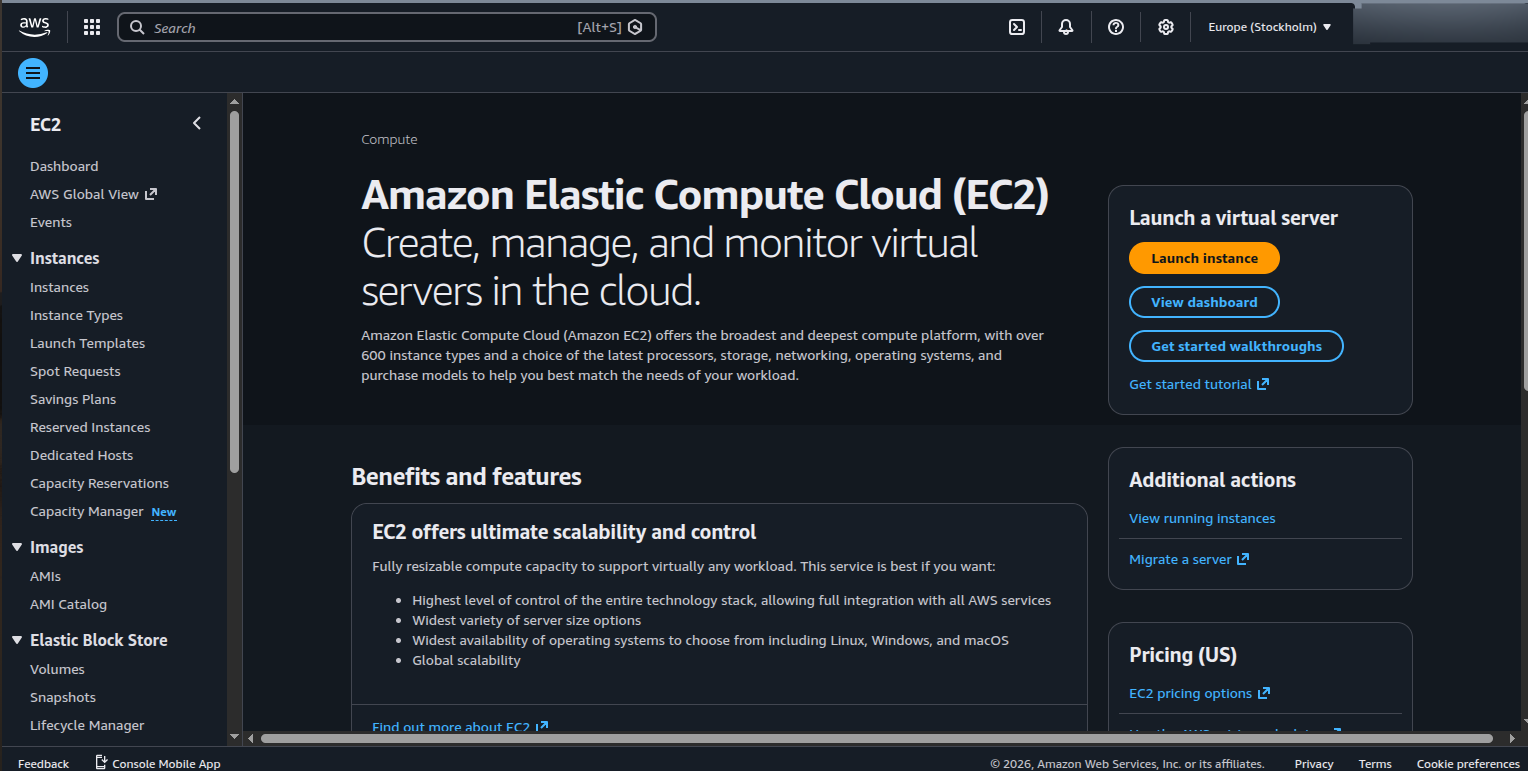 ### 1.1 Create Instance
1. Go to **AWS Console → EC2 Dashboard**
2. Click **"Launch Instances"**
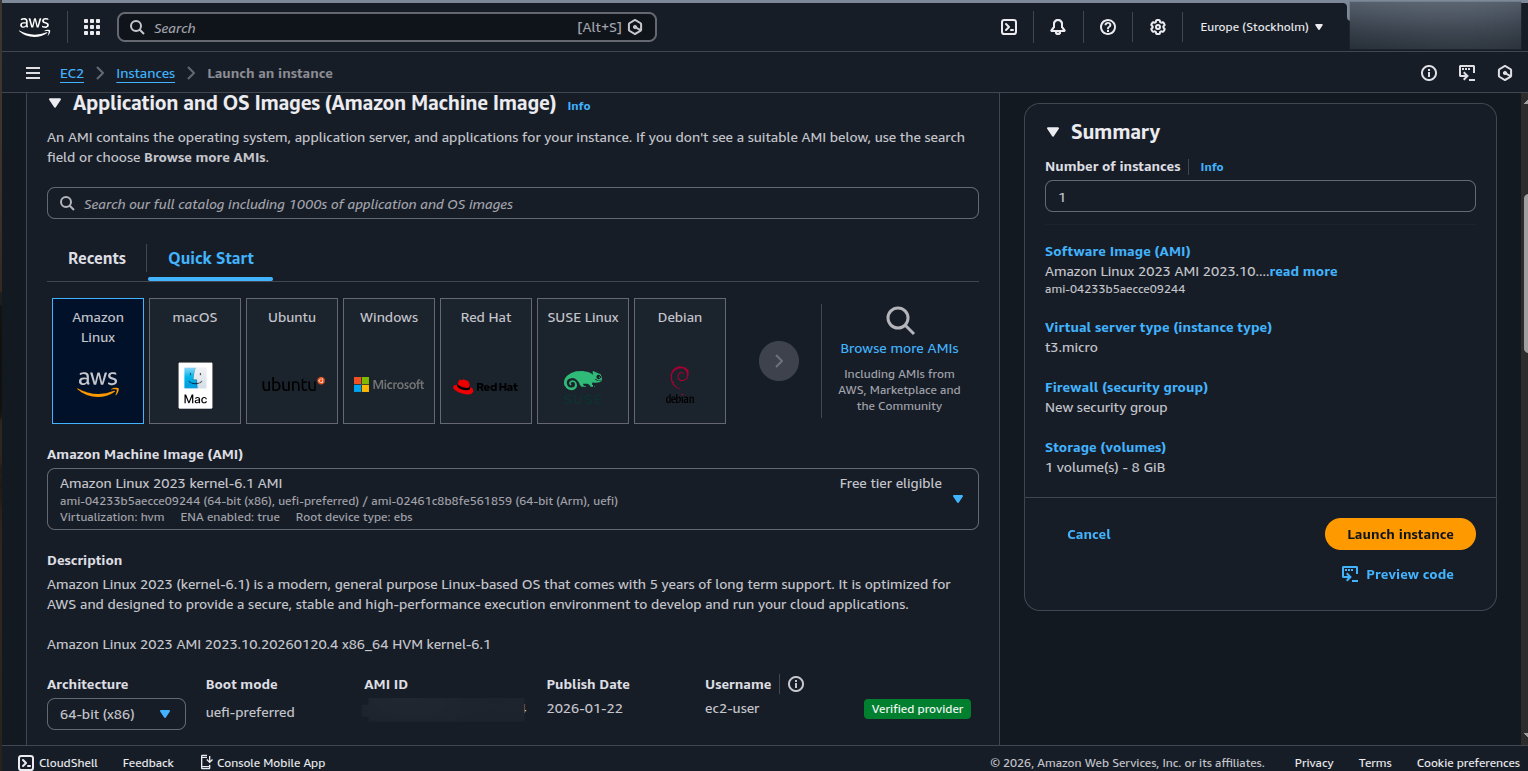
3. Select an AMI (Amazon Machine Image)
* Recommended: **Ubuntu 22.04 LTS** (free tier eligible)
4. Choose instance type: **t2.micro** (free tier) or **t3.small** for better performance
### 1.1 Create Instance
1. Go to **AWS Console → EC2 Dashboard**
2. Click **"Launch Instances"**
3. Select an AMI (Amazon Machine Image)
* Recommended: **Ubuntu 22.04 LTS** (free tier eligible)
4. Choose instance type: **t2.micro** (free tier) or **t3.small** for better performance
 ### 1.2 Configure Security Group
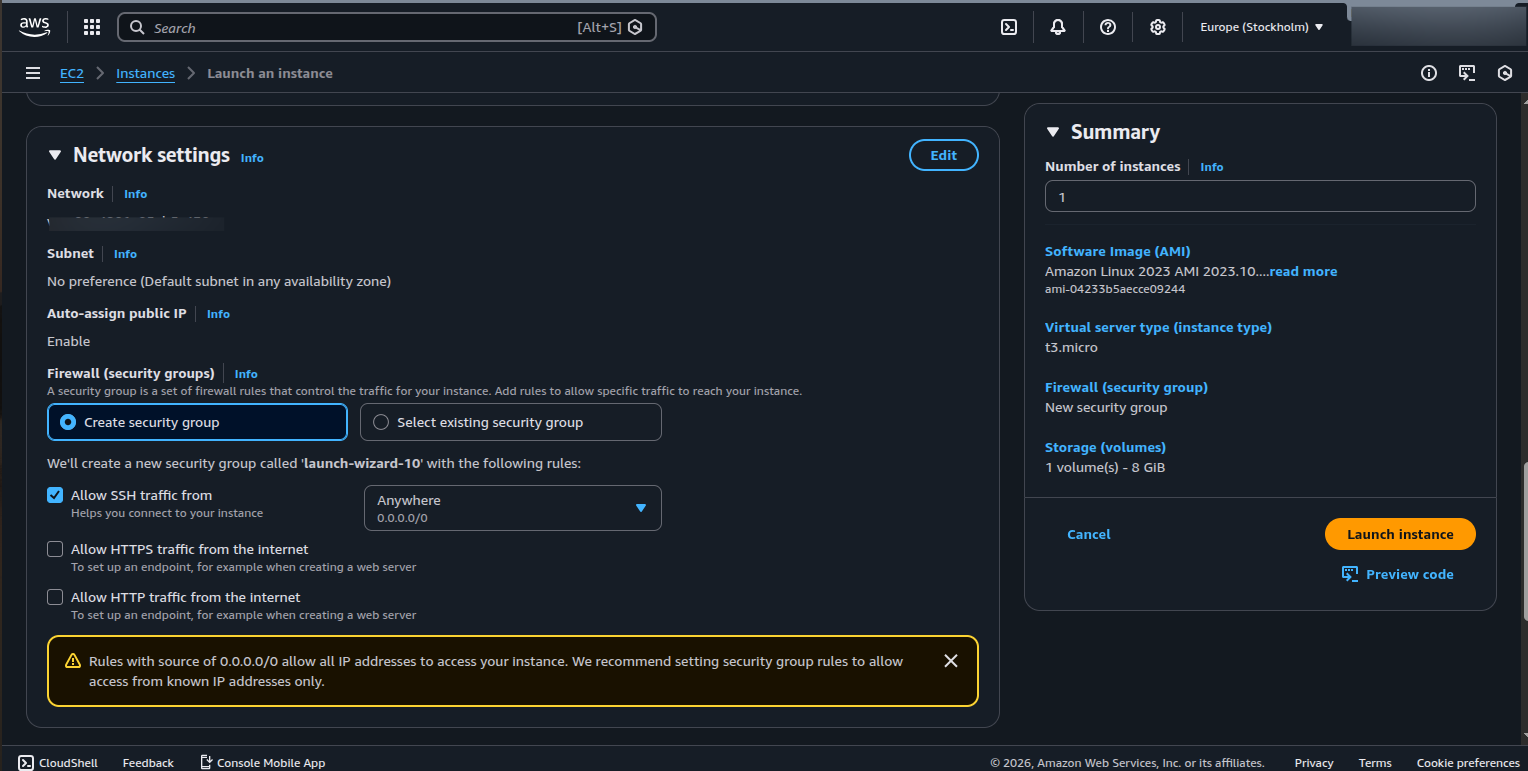
Configure security group to allow:
| Port | Protocol | Source | Purpose |
| --------- | -------- | --------- | ---------------- |
| 22 | TCP | Your IP | SSH Access |
| 80 | TCP | 0.0.0.0/0 | HTTP |
| 443 | TCP | 0.0.0.0/0 | HTTPS |
| 3000-8080 | TCP | 0.0.0.0/0 | Custom App Ports |
### 1.2 Configure Security Group
Configure security group to allow:
| Port | Protocol | Source | Purpose |
| --------- | -------- | --------- | ---------------- |
| 22 | TCP | Your IP | SSH Access |
| 80 | TCP | 0.0.0.0/0 | HTTP |
| 443 | TCP | 0.0.0.0/0 | HTTPS |
| 3000-8080 | TCP | 0.0.0.0/0 | Custom App Ports |
 ### 1.3 Connect to Instance
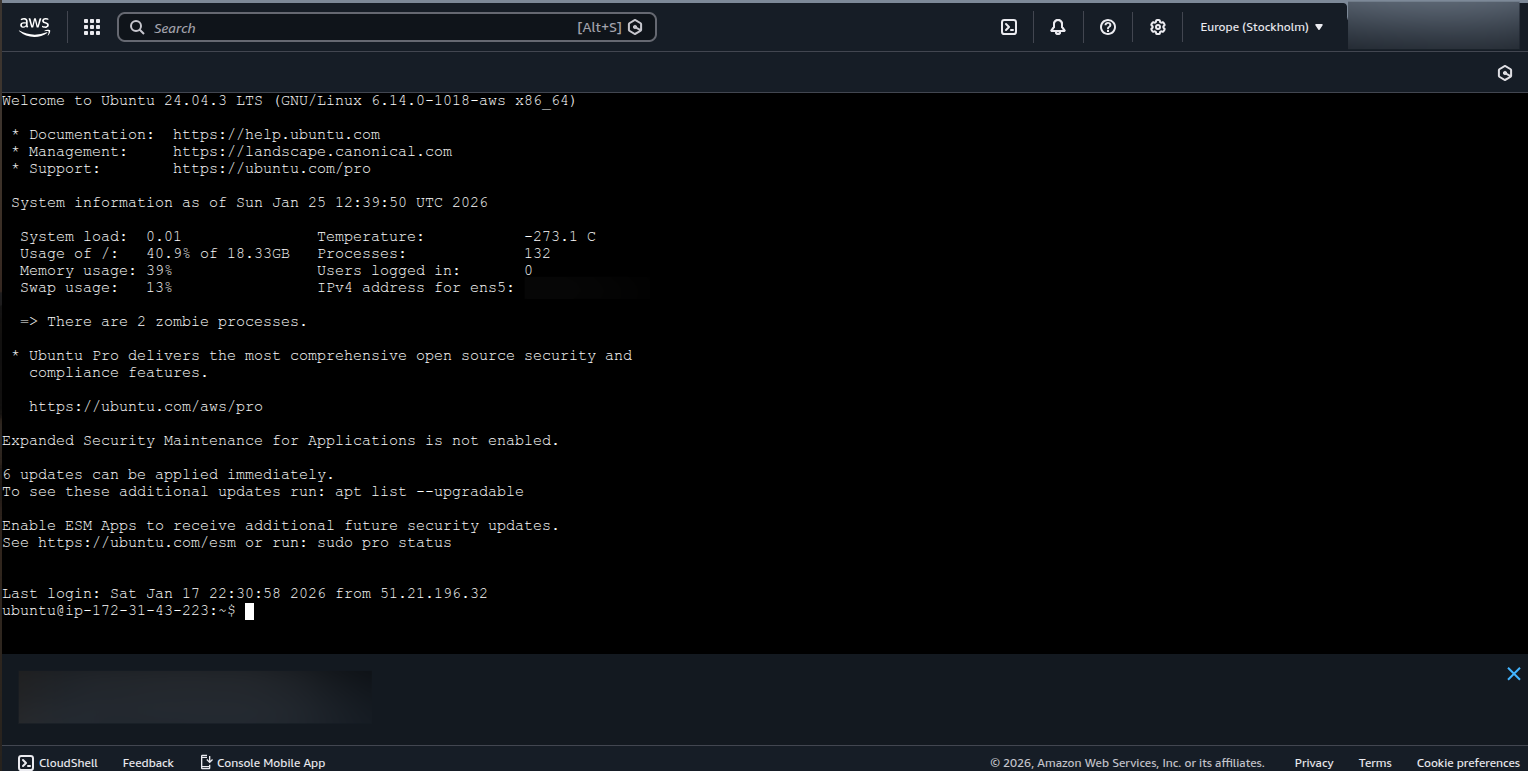
**Option A: SSH from Local Terminal**
```bash theme={null}
# Download your key pair (e.g., my-key.pem)
chmod 400 my-key.pem
# Connect via SSH
ssh -i my-key.pem ubuntu@YOUR_PUBLIC_IP
```
**Option B: AWS Console EC2 Instance Connect**
* Click instance → **"Connect" tab** → **"EC2 Instance Connect"**
* Browser-based terminal opens directly
### 1.3 Connect to Instance
**Option A: SSH from Local Terminal**
```bash theme={null}
# Download your key pair (e.g., my-key.pem)
chmod 400 my-key.pem
# Connect via SSH
ssh -i my-key.pem ubuntu@YOUR_PUBLIC_IP
```
**Option B: AWS Console EC2 Instance Connect**
* Click instance → **"Connect" tab** → **"EC2 Instance Connect"**
* Browser-based terminal opens directly
 ***
## Step 2: Update System & Install Dependencies
Once connected to your instance:
```bash theme={null}
# Update system packages
sudo apt update && sudo apt upgrade -y
# Install Git
sudo apt install git -y
# Install Docker
sudo apt install docker.io -y
# Add ubuntu user to docker group (avoid sudo for docker commands)
sudo usermod -aG docker ubuntu
# Verify Docker installation
docker --version
```
### 2.1 Logout & Login
```bash theme={null}
# Logout to apply docker group changes
exit
# SSH back in
ssh -i my-key.pem ubuntu@YOUR_PUBLIC_IP
```
***
## Step 3: Clone Repository & Setup SSH Keys
### 3.1 Generate SSH Key on EC2
```bash theme={null}
# Generate SSH key pair on EC2
ssh-keygen -t ed25519 -C "your-email@example.com"
# Press Enter for default location
# Press Enter for no passphrase (or set one for security)
# Display public key
cat ~/.ssh/id_ed25519.pub
```
### 3.2 Add Public Key to GitHub
1. Go to **GitHub → Settings → SSH and GPG keys**
2. Click **"New SSH key"**
3. Paste the output from `cat ~/.ssh/id_ed25519.pub`
4. Give it a name (e.g., "EC2 Server")
5. Click **"Add SSH key"**
### 3.3 Clone Your Repository
```bash theme={null}
# Clone using SSH (not HTTPS!)
git clone git@github.com:YOUR_USERNAME/YOUR_REPO.git
# Navigate into project
cd YOUR_REPO
```
**Why SSH?** HTTPS requires entering credentials each time. SSH uses keys for automatic authentication.
***
## Step 4: Environment Variables & Docker Setup
### 4.1 Create .env File
Create a `.env` file in your project root with your configuration:
```bash theme={null}
# Frontend Configuration
REACT_APP_API_URL=http://localhost:5000
NODE_ENV=production
# Backend Configuration
DATABASE_URL=postgresql://user:password@db-host:5432/dbname
NODE_ENV=production
JWT_SECRET=your_jwt_secret_key
API_PORT=5000
# App Settings
LOG_LEVEL=info
```
> ⚠️ **Important:** Never commit `.env` files to git. Add `.env` to your `.gitignore`
### 4.2 Load Environment Variables in Docker Compose
Update your `docker-compose.yml` to load from `.env` file:
```yaml theme={null}
version: '3.8'
services:
frontend:
build: ./frontend
ports:
- "3000:3000"
env_file:
- .env
environment:
- REACT_APP_API_URL=${REACT_APP_API_URL}
depends_on:
- backend
backend:
build: ./backend
ports:
- "5000:5000"
env_file:
- .env
environment:
- NODE_ENV=${NODE_ENV}
- DATABASE_URL=${DATABASE_URL}
- JWT_SECRET=${JWT_SECRET}
- API_PORT=${API_PORT}
volumes:
- ./backend:/app
depends_on:
- db
db:
image: postgres:15-alpine
environment:
- POSTGRES_USER=${DB_USER}
- POSTGRES_PASSWORD=${DB_PASSWORD}
- POSTGRES_DB=${DB_NAME}
volumes:
- postgres_data:/var/lib/postgresql/data
ports:
- "5432:5432"
volumes:
postgres_data:
```
### 4.3 Verify Docker Files
Make sure your project has:
* **Dockerfile** - Instructions to build your app image
* **docker-compose.yml** - Orchestrate multiple containers
### 4.4 Build & Run
```bash theme={null}
# Build images and start containers
docker-compose up --build -d
# View running containers
docker ps
# View logs
docker-compose logs -f
# Stop containers
docker-compose down
```
***
## Step 5: Nginx Configuration (Reverse Proxy)
### 5.1 Install Nginx
```bash theme={null}
sudo apt install nginx -y
sudo systemctl start nginx
sudo systemctl enable nginx
```
### 5.2 Configure Nginx
```bash theme={null}
# Edit nginx config
sudo nano /etc/nginx/sites-available/default
```
Replace content with:
```nginx theme={null}
server {
listen 80 default_server;
listen [::]:80 default_server;
server_name _;
# Frontend
location / {
proxy_pass http://localhost:3000;
proxy_set_header Host $host;
proxy_set_header X-Real-IP $remote_addr;
proxy_set_header X-Forwarded-For $proxy_add_x_forwarded_for;
proxy_set_header X-Forwarded-Proto $scheme;
}
# Backend API
location /api/ {
proxy_pass http://localhost:5000/;
proxy_set_header Host $host;
proxy_set_header X-Real-IP $remote_addr;
proxy_set_header X-Forwarded-For $proxy_add_x_forwarded_for;
}
}
```
### 5.3 Test & Reload
```bash theme={null}
# Test nginx config syntax
sudo nginx -t
# Reload nginx
sudo systemctl reload nginx
```
✅ Now access your app via **http\://YOUR\_PUBLIC\_IP** (Nginx will route to your containers)
***
## Step 6: Setup CI/CD with GitHub Actions
### 6.1 Create GitHub Actions Workflow
Create `.github/workflows/deploy.yml` in your repository:
```yaml theme={null}
name: Deploy to AWS
on:
push:
branches: [ main ]
jobs:
deploy:
runs-on: ubuntu-latest
steps:
- uses: actions/checkout@v3
- name: Deploy to EC2
env:
PRIVATE_KEY: ${{ secrets.EC2_PRIVATE_KEY }}
HOST: ${{ secrets.EC2_HOST }}
USER: ubuntu
REPO_PATH: /home/ubuntu/YOUR_REPO
run: |
echo "$PRIVATE_KEY" > private_key.pem
chmod 600 private_key.pem
ssh -i private_key.pem -o StrictHostKeyChecking=no $USER@$HOST '
cd $REPO_PATH &&
git pull origin main &&
docker-compose down &&
docker-compose up --build -d
'
rm private_key.pem
```
### 6.2 Add GitHub Secrets
1. Go to **GitHub → Settings → Secrets and variables → Actions**
2. Add these secrets:
* `EC2_PRIVATE_KEY`: Content of your `my-key.pem` file
* `EC2_HOST`: Your EC2 public IP address
### 6.3 Test Deployment
Push to `main` branch:
```bash theme={null}
git push origin main
```
GitHub Actions will automatically:
1. Pull latest code
2. SSH into EC2
3. Stop old containers
4. Build and start new containers
***
## Troubleshooting
### Environment Variables Not Loading
**Problem:** Environment variables are undefined in containers
```bash theme={null}
# Check if .env file exists in project root
ls -la .env
# Verify variables are being passed
docker-compose config | grep VARIABLE_NAME
# Rebuild containers
docker-compose down
docker-compose up --build -d
```
### Can't Clone Repository
**Problem:** "Permission denied (publickey)"
```bash theme={null}
# Ensure SSH key is added to GitHub
ssh -T git@github.com
# Check if key is registered
cat ~/.ssh/id_ed25519.pub
```
### Docker Permission Denied
```bash theme={null}
sudo usermod -aG docker $USER
# Logout and login again
exit
ssh -i my-key.pem ubuntu@YOUR_PUBLIC_IP
```
### Port Already in Use
```bash theme={null}
# Check what's using port 3000
sudo lsof -i :3000
# Kill process if needed
kill -9
```
### Nginx Not Routing Correctly
```bash theme={null}
# Check nginx logs
sudo tail -f /var/log/nginx/error.log
# Verify containers are running
docker ps
```
***
## Deployment Summary
| Step | Action | Purpose |
| ---- | --------------------------- | ----------------------------------- |
| 1 | Launch EC2 Instance | Create cloud server |
| 2 | Install Tools (Docker, Git) | Setup required dependencies |
| 3 | SSH Key & Clone Repo | Secure authentication and code sync |
| 4 | Setup Environment Variables | Configure app settings safely |
| 5 | Docker Compose Deploy | Run containerized application |
| 6 | Configure Nginx | Route traffic to containers |
| 7 | GitHub Actions CI/CD | Automate future deployments |
***
## Next Steps
* Set up SSL/TLS with Let's Encrypt for HTTPS
* Configure monitoring (CloudWatch, Prometheus)
* Setup database backups and replication
* Implement health checks and auto-recovery
* Learn Kubernetes for scaling
🎉 **Your application is now live at `http://YOUR_PUBLIC_IP`**
***
## Step 2: Update System & Install Dependencies
Once connected to your instance:
```bash theme={null}
# Update system packages
sudo apt update && sudo apt upgrade -y
# Install Git
sudo apt install git -y
# Install Docker
sudo apt install docker.io -y
# Add ubuntu user to docker group (avoid sudo for docker commands)
sudo usermod -aG docker ubuntu
# Verify Docker installation
docker --version
```
### 2.1 Logout & Login
```bash theme={null}
# Logout to apply docker group changes
exit
# SSH back in
ssh -i my-key.pem ubuntu@YOUR_PUBLIC_IP
```
***
## Step 3: Clone Repository & Setup SSH Keys
### 3.1 Generate SSH Key on EC2
```bash theme={null}
# Generate SSH key pair on EC2
ssh-keygen -t ed25519 -C "your-email@example.com"
# Press Enter for default location
# Press Enter for no passphrase (or set one for security)
# Display public key
cat ~/.ssh/id_ed25519.pub
```
### 3.2 Add Public Key to GitHub
1. Go to **GitHub → Settings → SSH and GPG keys**
2. Click **"New SSH key"**
3. Paste the output from `cat ~/.ssh/id_ed25519.pub`
4. Give it a name (e.g., "EC2 Server")
5. Click **"Add SSH key"**
### 3.3 Clone Your Repository
```bash theme={null}
# Clone using SSH (not HTTPS!)
git clone git@github.com:YOUR_USERNAME/YOUR_REPO.git
# Navigate into project
cd YOUR_REPO
```
**Why SSH?** HTTPS requires entering credentials each time. SSH uses keys for automatic authentication.
***
## Step 4: Environment Variables & Docker Setup
### 4.1 Create .env File
Create a `.env` file in your project root with your configuration:
```bash theme={null}
# Frontend Configuration
REACT_APP_API_URL=http://localhost:5000
NODE_ENV=production
# Backend Configuration
DATABASE_URL=postgresql://user:password@db-host:5432/dbname
NODE_ENV=production
JWT_SECRET=your_jwt_secret_key
API_PORT=5000
# App Settings
LOG_LEVEL=info
```
> ⚠️ **Important:** Never commit `.env` files to git. Add `.env` to your `.gitignore`
### 4.2 Load Environment Variables in Docker Compose
Update your `docker-compose.yml` to load from `.env` file:
```yaml theme={null}
version: '3.8'
services:
frontend:
build: ./frontend
ports:
- "3000:3000"
env_file:
- .env
environment:
- REACT_APP_API_URL=${REACT_APP_API_URL}
depends_on:
- backend
backend:
build: ./backend
ports:
- "5000:5000"
env_file:
- .env
environment:
- NODE_ENV=${NODE_ENV}
- DATABASE_URL=${DATABASE_URL}
- JWT_SECRET=${JWT_SECRET}
- API_PORT=${API_PORT}
volumes:
- ./backend:/app
depends_on:
- db
db:
image: postgres:15-alpine
environment:
- POSTGRES_USER=${DB_USER}
- POSTGRES_PASSWORD=${DB_PASSWORD}
- POSTGRES_DB=${DB_NAME}
volumes:
- postgres_data:/var/lib/postgresql/data
ports:
- "5432:5432"
volumes:
postgres_data:
```
### 4.3 Verify Docker Files
Make sure your project has:
* **Dockerfile** - Instructions to build your app image
* **docker-compose.yml** - Orchestrate multiple containers
### 4.4 Build & Run
```bash theme={null}
# Build images and start containers
docker-compose up --build -d
# View running containers
docker ps
# View logs
docker-compose logs -f
# Stop containers
docker-compose down
```
***
## Step 5: Nginx Configuration (Reverse Proxy)
### 5.1 Install Nginx
```bash theme={null}
sudo apt install nginx -y
sudo systemctl start nginx
sudo systemctl enable nginx
```
### 5.2 Configure Nginx
```bash theme={null}
# Edit nginx config
sudo nano /etc/nginx/sites-available/default
```
Replace content with:
```nginx theme={null}
server {
listen 80 default_server;
listen [::]:80 default_server;
server_name _;
# Frontend
location / {
proxy_pass http://localhost:3000;
proxy_set_header Host $host;
proxy_set_header X-Real-IP $remote_addr;
proxy_set_header X-Forwarded-For $proxy_add_x_forwarded_for;
proxy_set_header X-Forwarded-Proto $scheme;
}
# Backend API
location /api/ {
proxy_pass http://localhost:5000/;
proxy_set_header Host $host;
proxy_set_header X-Real-IP $remote_addr;
proxy_set_header X-Forwarded-For $proxy_add_x_forwarded_for;
}
}
```
### 5.3 Test & Reload
```bash theme={null}
# Test nginx config syntax
sudo nginx -t
# Reload nginx
sudo systemctl reload nginx
```
✅ Now access your app via **http\://YOUR\_PUBLIC\_IP** (Nginx will route to your containers)
***
## Step 6: Setup CI/CD with GitHub Actions
### 6.1 Create GitHub Actions Workflow
Create `.github/workflows/deploy.yml` in your repository:
```yaml theme={null}
name: Deploy to AWS
on:
push:
branches: [ main ]
jobs:
deploy:
runs-on: ubuntu-latest
steps:
- uses: actions/checkout@v3
- name: Deploy to EC2
env:
PRIVATE_KEY: ${{ secrets.EC2_PRIVATE_KEY }}
HOST: ${{ secrets.EC2_HOST }}
USER: ubuntu
REPO_PATH: /home/ubuntu/YOUR_REPO
run: |
echo "$PRIVATE_KEY" > private_key.pem
chmod 600 private_key.pem
ssh -i private_key.pem -o StrictHostKeyChecking=no $USER@$HOST '
cd $REPO_PATH &&
git pull origin main &&
docker-compose down &&
docker-compose up --build -d
'
rm private_key.pem
```
### 6.2 Add GitHub Secrets
1. Go to **GitHub → Settings → Secrets and variables → Actions**
2. Add these secrets:
* `EC2_PRIVATE_KEY`: Content of your `my-key.pem` file
* `EC2_HOST`: Your EC2 public IP address
### 6.3 Test Deployment
Push to `main` branch:
```bash theme={null}
git push origin main
```
GitHub Actions will automatically:
1. Pull latest code
2. SSH into EC2
3. Stop old containers
4. Build and start new containers
***
## Troubleshooting
### Environment Variables Not Loading
**Problem:** Environment variables are undefined in containers
```bash theme={null}
# Check if .env file exists in project root
ls -la .env
# Verify variables are being passed
docker-compose config | grep VARIABLE_NAME
# Rebuild containers
docker-compose down
docker-compose up --build -d
```
### Can't Clone Repository
**Problem:** "Permission denied (publickey)"
```bash theme={null}
# Ensure SSH key is added to GitHub
ssh -T git@github.com
# Check if key is registered
cat ~/.ssh/id_ed25519.pub
```
### Docker Permission Denied
```bash theme={null}
sudo usermod -aG docker $USER
# Logout and login again
exit
ssh -i my-key.pem ubuntu@YOUR_PUBLIC_IP
```
### Port Already in Use
```bash theme={null}
# Check what's using port 3000
sudo lsof -i :3000
# Kill process if needed
kill -9
```
### Nginx Not Routing Correctly
```bash theme={null}
# Check nginx logs
sudo tail -f /var/log/nginx/error.log
# Verify containers are running
docker ps
```
***
## Deployment Summary
| Step | Action | Purpose |
| ---- | --------------------------- | ----------------------------------- |
| 1 | Launch EC2 Instance | Create cloud server |
| 2 | Install Tools (Docker, Git) | Setup required dependencies |
| 3 | SSH Key & Clone Repo | Secure authentication and code sync |
| 4 | Setup Environment Variables | Configure app settings safely |
| 5 | Docker Compose Deploy | Run containerized application |
| 6 | Configure Nginx | Route traffic to containers |
| 7 | GitHub Actions CI/CD | Automate future deployments |
***
## Next Steps
* Set up SSL/TLS with Let's Encrypt for HTTPS
* Configure monitoring (CloudWatch, Prometheus)
* Setup database backups and replication
* Implement health checks and auto-recovery
* Learn Kubernetes for scaling
🎉 **Your application is now live at `http://YOUR_PUBLIC_IP`**